Showing posts with label How to blog. Show all posts

6.25.2015

Create a Custom PINTEREST hover button in Blogger Images

Last post on Blogger was on how to create social media icons for your blogger sidebar. You can view the tutorial here. Today is gonna be another fun tutorial to add an extra touch to your blog images so that readers can easily Pin the images they like to their Pinterest Board. (And believe me, this one is real useful to me as well, as I directly pin my images using this).

Create a Custom PINTEREST hover button on images in Blogger


I'l walk you through these simple steps on how to create your own customized Pin-it Hover button for your blogger images.


1. Go to PicMonkey. Select Design. You can select either Square or Custom for the canvas.

Create a Custom PINTEREST hover button on images in Blogger


2. Enter the size for the canvas. I am going keep mine as 80 px x 80 px and then crop if its big.

Create a Custom PINTEREST hover button on images in Blogger


3. Set the canvas as 'Transparent'.

Create a Custom PINTEREST hover button on images in Blogger


4. Enter any overlay you want or add your own. Change its color or size.

Create a Custom PINTEREST hover button on images in Blogger


5. Add the text 'Pin it' or 'Pin me' or anything you like. :)

Create a Custom PINTEREST hover button on images in Blogger


6. Save the image as .png (very very important)

Create a Custom PINTEREST hover button on images in Blogger


7. Upload your image to image hosting website like Photobucket. Copy the URL.

Create a Custom PINTEREST hover button on images in Blogger


8. Now go to your Blogger Dashboard -->  Template --> Edit HTML

Create a Custom PINTEREST hover button on images in Blogger


9. Click onto the coding part and select CTRL + F (Find) then search for </body>

Create a Custom PINTEREST hover button on images in Blogger


10. Once you locate the </body> add the following code above this:

<script>
//<![CDATA[
var bs_pinButtonURL = "your pin it image URL.png";
var bs_pinButtonPos = "center";
var bs_pinPrefix = "";
var bs_pinSuffix = "";
//]]>
</script>

<script src='http://ajax.googleapis.com/ajax/libs/jquery/1.8.2/jquery.min.js' type='text/javascript'/>
<script id='bs_pinOnHover' src='http://greenlava-code.googlecode.com/svn/trunk/publicscripts/bs_pinOnHoverv1_min.js' type='text/javascript'>
// This Pinterest Hover Button is brought to you by bloggersentral.com.
// Visit http://www.bloggersentral.com/2012/11/pinterest-pin-it-button-on-image-hover.html for details.
// Feel free to use and share, but please keep this notice intact.
</script>


Create a Custom PINTEREST hover button on images in Blogger


NOTE: 
  • Replace the red portion with the image URL
  • Blue portion with the alignment options: topleft, topright, bottomleft, bottomright, center (default state)


Create a Custom PINTEREST hover button on images in Blogger


11. Click Save Template. now write a blog post with an image and publish it.

Create a Custom PINTEREST hover button on images in Blogger


12. View your blog / post and hover over the image to see the 'Pin-it' button

Create a Custom PINTEREST hover button on images in Blogger

13. Try with other alignment options if you want the button elsewhere. (the below image alignment for pin-it button is top-left)

Create a Custom PINTEREST hover button on images in Blogger
14. And YEAH !!!! You now have your own customized Pin-it hover button for your blog images. :) Jump with Joy :) 


Make any shape or style you want to match your blog theme and enjoy :) 


5.14.2015

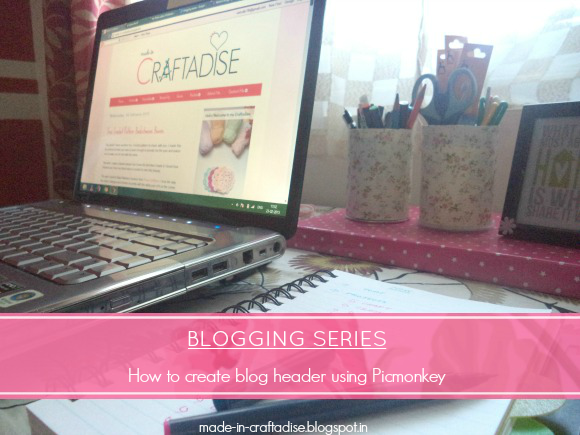
How to: Create a Blog Header using Picmonkey

This post explains you how to create your own blog header in a very easy way using Picmonkey. Picmonkey is so easy to use and I am just loving every tools it contains. Now let us see how we can create a blog header using the same.

How to: Create a Blog Header using Picmonkey


1. Go to Picmonkey website.

2. Hover above Design tab and select Custom.

How to: Create a Blog Header using Picmonkey


3. Enter the dimensions of your header { total blog width - (40 px * 2 [on both sides] )  }  
i.e. ( total blog width in px - 80 px )  My blog width  is 960, so 960 px - 80 px = 880 px. Height can be customized to your needs.

How to: Create a Blog Header using Picmonkey


4. Now add text, adjust the size, color, etc.

How to: Create a Blog Header using Picmonkey


5. Nest you can go to Overlays tab and add whatever designs or shapes you want.

How to: Create a Blog Header using Picmonkey


I added rectangular border, butterflies, a bird and a corner accent {to keep it simple and clean}. You can try your hands on everything to make it look yours and match your blog.

How to: Create a Blog Header using Picmonkey


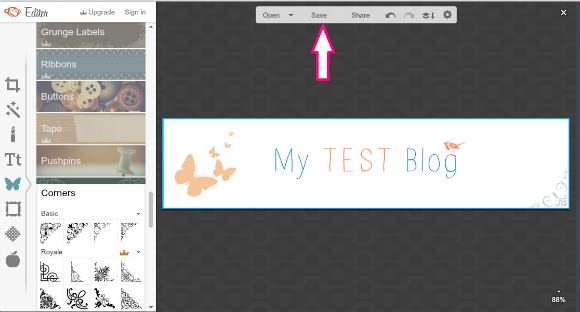
6. Once you have completed, click the SAVE button.  

How to: Create a Blog Header using Picmonkey


7. Save As .png (Do not forget this step)

How to: Create a Blog Header using Picmonkey


8. Now go to Blogger --> Layout --> Click Edit button in the Header widget.

How to: Create a Blog Header using Picmonkey


9. Click Choose File and select the image.

How to: Create a Blog Header using Picmonkey


10. Then select Instead of title and description. Then Click Save.

How to: Create a Blog Header using Picmonkey


11. Click Save Arrangement and View Blog to view your blog page with the header. 

How to: Create a Blog Header using Picmonkey


12. The blog with the header is ready and set. 

How to: Create a Blog Header using Picmonkey


NOTE:

If your header doesn't fit inside or getting cropped in one corner, adjust the size of your header. 

1. Select Shrink to fit in Step (10) 

(or)

2. Check for the header size like below and then create your header.

check size of header in blog


This way you can never go wrong with your sizing. Try out with different fonts, colors matching your blog and overlays. You can add your own fonts and overlays as well. Try this and create your own blog header that looks elegant.


Have a great day! Take care :) 


5.07.2015

How to: Create a blog, write a blog post and add a sidebar widget in blogger

Read the previous posts in the Blogger Series here:
  1. My Blogging experience so far (1/2)
  2. My Blogging experience so far (2/2)
  3. Plan: the first step towards blogging
How to: Create a blog, write a blog post and add a sidebar widget in blogger


After Planning on what you want to blog and how, you must have got some idea how to put forth these ideas into reality. This post shows you how to do the following:
  • create a simple Blogger blog, 
  • customize the fonts and colors, 
  • how to write a blog post & 
  • how to add a sidebar widget. 


CREATE A BLOG AND WRITE YOUR FIRST BLOG POST
  • Have a Google account/ Gmail account. If not , create one.
  • Go to Blogger.com.
  • Enter your email address and password, if you do not have one, create an account and log in.
  • Click on ‘New Blog’ button
  • Enter your blog details.
                  a. Blog title
b. Blog address and check for availability
c. Template
And click ‘Create Blog’

  • Blog has been created. Click on to ‘start posting’ to start posting or click onto the blog title ‘My Test Blog’ to edit (it can be done as well)
  • Create the post.

a. Enter post title.
b. Enter post details
c. Add labels to it and click done.
d. Click ‘Save’ to publish later or ‘Publish’ to publish immediately.
  • Now click ‘View Blog’ on top or ‘view’ under the post title to view how your post and blog looks like at this moment.

IMAGES:


How to create a blog, write a blog post and add a sidebar widget in blogger


How to create a blog, write a blog post and add a sidebar widget in blogger


How to create a blog, write a blog post and add a sidebar widget in blogger


How to create a blog, write a blog post and add a sidebar widget in blogger


How to create a blog, write a blog post and add a sidebar widget in blogger


How to create a blog, write a blog post and add a sidebar widget in blogger


How to create a blog, write a blog post and add a sidebar widget in blogger


CUSTOMIZE - CHANGE THE COLOR AND LOOK OF THE BLOG
  • Go back to your blogger dashboard and click on Template and click on ‘Customize’
  • Various options under that are:
a. Template
b. Background
c. Adjust widths
d. Layout
e. Advanced

  • In Template, Choose the Template you like. I have chosen black template under Simple Template (Since it does not have any theme colors)
  • You can view the look below.
  • Under Background, you can choose the background image you like. (I haven’t chosen any since I will be adding a color to the background later)
  • Adjust the width of your entire blog and your sidebar
  • Select your desired layout.
  • Advance options – Choose your color and fonts to match your blogs need. {In this, I have selected an outer background color as light yellow, kept main background and header background as white. 

IMAGES:

How to create a blog, write a blog post and add a sidebar widget in blogger


How to create a blog, write a blog post and add a sidebar widget in blogger


How to create a blog, write a blog post and add a sidebar widget in blogger


How to create a blog, write a blog post and add a sidebar widget in blogger


How to create a blog, write a blog post and add a sidebar widget in blogger


How to create a blog, write a blog post and add a sidebar widget in blogger


     ADDING A SIDEBAR WIDGET
  •  Now go ‘Back to Blogger’.
  • Click layout and add gadget from right sidebar. I selected ‘Search box’, change the Title and click Done.
  • Drag to where you want it placed, ‘Save Arrangement’ and ‘Preview’ to see how it looks.
Like this you can add several gadgets and reposition them to the place you want.

IMAGES:


How to create a blog, write a blog post and add a sidebar widget in blogger


How to create a blog, write a blog post and add a sidebar widget in blogger


How to create a blog, write a blog post and add a sidebar widget in blogger


vHow to create a blog, write a blog post and add a sidebar widget in blogger


This is how your blog will look like at this stage. 

How to create a blog, write a blog post and add a sidebar widget in blogger

Do not worry. It still looks dull and plain. We will further be adding header, social media icons, more gadgets, etc and make the blog look awesome. All this in the upcoming blogger tutorial posts.

Take care :)


4.23.2015

Plan - the first step towards blogging

Hello everyone. As promised, I present you the Blogging Series. I will share some tips and tutorials for starting a blog successfully and how to enhance the look of your blog as well. Following will be a series of tutorials, a step-by-step detailed instructions on how to start your blog and how to develop it little by little.

First in the series is: PLANNING.

Plan - the first step towards blogging

Before you step directly into creating your blog, it is very essential for you to Plan on things. This applies for everything. What does Planning mean?
"A detailed proposal for doing or achieving something"  - {Google}
"An intention or decision about what one is going to do" - {Google}
As you can see it clearly states that 'laying something out about what you are going to do in a detailed manner so as to get yourself an idea as to how your action is going to be. 

In blogging. do the same. Plan first and then Implement. It helps your work easier and you get a clear idea on what you should work on, how and what resources are required for you to put it into action. It is not that difficult as it seems to be. It is just a little bit of time you spend that makes things easier for you later on and saves time. 

Let us see how we can Plan for creating a blog. The following few steps will help you Plan your blog and its details in advance. Take a paper or your notepad and note down your ideas on each step as you go. 


1.  AN IDEA

[Image source]

You must definitely be here if you are planning on creating a blog. 
Answer to these questions:
  • How did you get the idea? 
  • Did anything inspire you?
You must have definitely been inspired by someone's work or blog (definitely, I was). So think for a moment what brought you here and why are you taking this step.

Now that you know about what caused you to start a blog, lets see on yourself and what you are having in mind. 
  • What blog are you planning to start?
  • Why do you want to blog? 
  • How do you want to present your posts and ideas?
  • When are you going to start on it?
  • And how are you going to be different from other bloggers out there?
When you have answered to these questions, lets move on to the second stage.


2. RESEARCH:

[Image source]


In the beginning, it was just a general idea of what you want to blog and why. Lets us see the next major step for blogging 'Research'. It is a must in any project you do, be it even blogging. Now that you have a general idea, you have to go in-depth and analyze and collect information out of it for your needs.
  • Visit various blogs
  • Visit similar blogs
  • Analyze the content and writing style, their photography, their blog design, structure/construction, elements, etc
  • Know about SEO (search engine optimization) and a little about tags and titles
  • Read posts of other blogs and see how and what methods they use to attract readers
  • What blogging platform they use {Blogspot, Wordpress, own domain}
  • In what span they have come to reach this place in blogging
  • etc.
There are so many other research items that you can extract from the internet about blogging and from various other bloggers. By now you should now have a clear idea, fixed mind and visual diagram of how your blog will be and what it should contain and so on.


3. ROUGH SKETCH

Now on the paper sketch a skeleton of how your blog should look like. 
  • Blog header position
  • Posts position
  • About me snippet position
  • Gallery position
  • Pages you want
  • etc.
Take time and draw until you are satisfied with the look and overall structure of it.

Some examples:

[Image source]

[Image source]

[Image source]

It need not be detailed or specific, just a rough sketch would do just to get yourself an idea as to what goes where and it further gives you an insight on what you should include in your blog.


4. THEME

You have have seen a lot of websites and blogs by now while research. There will be a theme to each and every blog and a color scheme involved. Take my blog for example. I have two color scheme and a theme like hearts and floral gadget titles with the same color scheme.

It is time for you to decide your theme and colors now. {You can definitely change anytime you want} Is this really necessary? No, it is not. Then why? It gives you blog a more beautiful and even look and it makes it more visually appealing as well. 
You will be using the color and fonts throughout your blog {sidebar widgets, posts, etc.}, social media, branding {business cards, logo, etc.}, etc.


5. BLOG NAME

Select your blog title and sub-title if you want and also design a simple logo for your blog. 
  • Blog title
  • Sub-title
  • Logo (this can be done even later on)

Now that we have seen how to Plan, we have moved one step toward blogging. Later in the series, I'l be teaching you how to create your blog and how to custom design it.

I hope you liked the first part of it.

Happy Blogging!