Showing posts with label Blogging. Show all posts

7.22.2016

Book Review - Six Degrees : Game of Blogs by BlogAdda.com + a free printable

Hey friends. How have you all been. Today's post is going to be a little different. I’ll be reviewing book from BlogAdda.com called SIX DEGREES – GAME OF BLOGS. I am so happy that I have been chosen by Team BlogAdda for their Book Review Program. This time, the book to be reviewed is completely a different one from what we usually read, you’ll find out in a second why. I have chosen to include this in the post as it is a collaborative effort by bloggers and being a blogger myself, I wanted to support them.


SIX DEGREES?

I was, at first sight, intrigued by the title and was pondering over the title how this came to be called so. Another interesting challenge the book had to offer was the quest to find why its named SIX DEGREES. And I might have found the reason and it is up to you guys to get the book, read it and then send your prediction to the email address mentioned. And I'm going to do this right away. I found this so interesting that it kept me committed to the book.


6.04.2015

Create Social Media Icons For Blogger Sidebar using PicMonkey & Image-Maps

This weeks Blogger tutorial is on how to create social media icons for your blogger sidebar using simple technique which includes PicMonkey and Image-Maps.

Create Social Media Icons For Blogger Sidebar using PicMonkey & Image-Maps


1. Before you create your socila media icon bar for your sidebar, let us check how big your image on the sidebar should be (this technique can be applied for any sidebar image gadget you add). Go to your Blogger Dashboard. Click Layout --> Add a Gadget.


Create Social Media Icons For Blogger Sidebar using PicMonkey & Image-Maps


2. Select the Image option. 

Create Social Media Icons For Blogger Sidebar using PicMonkey & Image-Maps


3. Scroll down to see the 'Shrink to fit' option. Below this you will see the pixel size. This is the size you want your sidebar images to be. Not more than this, but can be smaller. 


Create Social Media Icons For Blogger Sidebar using PicMonkey & Image-Maps


4. Before designing the social media icons, you need to have the icons vector/ silhoutte images of the icon. There are various websites offering free social media icons and just the silhoutte. Download the icons from the website to your computer. This will further be used in Picmonkey to design your own icons. 

Some websites offering free social media icons:
  • http://theblogdesignernetwork.com/2011/08/free-social-icon-silhouettes/
  • http://www.pixelfrau.com/black-social-media-icons/
  • http://visionwidget.com/free-social-media-icons.html


5. Go to PicMonkey --> Design --> Custom

Create Social Media Icons For Blogger Sidebar using PicMonkey & Image-Maps


6. Enter the Pixel size (250) for length and height as > or < 100 (your choice). 

Create Social Media Icons For Blogger Sidebar using PicMonkey & Image-Maps


7. Add Overlay. I am adding circles for the base. Change the color and size to match your blog. (You can skip this step if you do not want a background for the icons).

Create Social Media Icons For Blogger Sidebar using PicMonkey & Image-Maps


8. Select 'Your Own' in Overlays tab, browse for the icons you downloaded and select one. 

Create Social Media Icons For Blogger Sidebar using PicMonkey & Image-Maps


9. Change the color, bring it above the circle and position it well. Now Right click on the circle to Duplicate Overlay for the rest of the icons (to have consistent color and size). 

Create Social Media Icons For Blogger Sidebar using PicMonkey & Image-Maps


10. Add a line or a rectangle above and below the icons to keep them aligned in a straight line.

Create Social Media Icons For Blogger Sidebar using PicMonkey & Image-Maps


11. Keep adding your social media icons and then remove the lines added.

Create Social Media Icons For Blogger Sidebar using PicMonkey & Image-Maps


12. Now you can crop the excess region above and below. (optional)

Create Social Media Icons For Blogger Sidebar using PicMonkey & Image-Maps


13. Save the file as .png. (Very important step)

Create Social Media Icons For Blogger Sidebar using PicMonkey & Image-Maps


14. Upload the image in an image hosting website (eg: Photobucket) Get the link of the image. (should end in .png)


15. Go to Image-Maps. Enter the image URL and select Start Mapping.

Create Social Media Icons For Blogger Sidebar using PicMonkey & Image-Maps


16. Check your image and then select click to Continue.

Create Social Media Icons For Blogger Sidebar using PicMonkey & Image-Maps


17. Right click on the first icon and select Create Rect.

Create Social Media Icons For Blogger Sidebar using PicMonkey & Image-Maps
18. Draw a Rectangle around the icon and you will get a box like this to fill the details.
  • Enter the URL you want to visit when clicked on that image. 
  • enter Title (this will be displayed when the mouse is hovered above that icon)
  • Enter Alt

Create Social Media Icons For Blogger Sidebar using PicMonkey & Image-Maps


19. Go to Settings Tab
  • Change the Background color to White #fff
  • Opacity --> 0 to make it clear.
  •  Border color to white #fff

Create Social Media Icons For Blogger Sidebar using PicMonkey & Image-Maps


20. Continue for all other icons. Finally, right click outside and select Get code.

Create Social Media Icons For Blogger Sidebar using PicMonkey & Image-Maps


21. Select HTML Code. Scroll down and copy the code.

Create Social Media Icons For Blogger Sidebar using PicMonkey & Image-Maps


Create Social Media Icons For Blogger Sidebar using PicMonkey & Image-Maps


22. Go back to blogger. go to Dashboard and select Layout --> Add a Gadget --> HTML/Javascript.

Create Social Media Icons For Blogger Sidebar using PicMonkey & Image-Maps


23. Enter the title and paste the code. Then save.

Create Social Media Icons For Blogger Sidebar using PicMonkey & Image-Maps


24. Rearrange the position of these icons if ypu want and then click Save Arrangement.

Create Social Media Icons For Blogger Sidebar using PicMonkey & Image-Maps


25. Now View Blog to see the icons on your sidebar. Click on each and check if its working. Or check if you have entered the right URL for each.  

If your sidebar is towards the left, you can center align it by adding:
<div align="center">  before the code and </div> after the code.

Create Social Media Icons For Blogger Sidebar using PicMonkey & Image-Maps


Image used:  (You can use this image for your blog/website. Rigth click and save image. Upload it in image hosting website. Copy URL and use it in Image-Maps)


Code:

<div align="center">
<img id="Image-Maps-Com-image-maps-2015-05-29-062705" src="imagelink.png" border="0" width="250" height="66" orgWidth="250" orgHeight="66" usemap="#image-maps-2015-05-29-062705" alt="" />
<map name="image-maps-2015-05-29-062705" id="ImageMapsCom-image-maps-2015-05-29-062705">
<area  alt="Facebook" title="Facebook" href="http://www.yourfacebookpage.com/" shape="rect" coords="4,10,49,57" style="outline:none;" target="_self"     />
<area  alt="Twitter" title="Twitter" href="http://www.yourtwitterpage.com/" shape="rect" coords="49,10,100,58" style="outline:none;" target="_self"     />
<area  alt="Instagram" title="Instagram" href="http://www.yourinstapage.com/" shape="rect" coords="96,9,149,59" style="outline:none;" target="_self"     />
<area  alt="Pinterest" title="Pinterest" href="http://www.yourpinitpage.com/" shape="rect" coords="150,3,197,58" style="outline:none;" target="_self"     />
<area  alt="Google+" title="Google+" href="http://www.yourgpluspage.com/" shape="rect" coords="200,5,249,58" style="outline:none;" target="_self"     />
<area shape="rect" coords="248,64,250,66" alt="Image Map" style="outline:none;" title="Image Map" href="http://www.image-maps.com/index.php?aff=mapped_users_0" />
</map>
</div>


(Enter the respective URL instead of the red text. Use the image, map and get the code. Use the code in HTML/Javascript Gadget)


5.14.2015

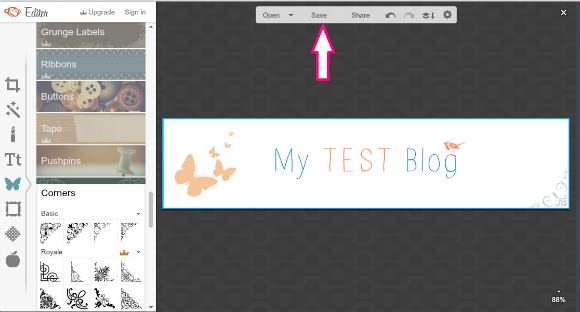
How to: Create a Blog Header using Picmonkey

This post explains you how to create your own blog header in a very easy way using Picmonkey. Picmonkey is so easy to use and I am just loving every tools it contains. Now let us see how we can create a blog header using the same.

How to: Create a Blog Header using Picmonkey


1. Go to Picmonkey website.

2. Hover above Design tab and select Custom.

How to: Create a Blog Header using Picmonkey


3. Enter the dimensions of your header { total blog width - (40 px * 2 [on both sides] )  }  
i.e. ( total blog width in px - 80 px )  My blog width  is 960, so 960 px - 80 px = 880 px. Height can be customized to your needs.

How to: Create a Blog Header using Picmonkey


4. Now add text, adjust the size, color, etc.

How to: Create a Blog Header using Picmonkey


5. Nest you can go to Overlays tab and add whatever designs or shapes you want.

How to: Create a Blog Header using Picmonkey


I added rectangular border, butterflies, a bird and a corner accent {to keep it simple and clean}. You can try your hands on everything to make it look yours and match your blog.

How to: Create a Blog Header using Picmonkey


6. Once you have completed, click the SAVE button.  

How to: Create a Blog Header using Picmonkey


7. Save As .png (Do not forget this step)

How to: Create a Blog Header using Picmonkey


8. Now go to Blogger --> Layout --> Click Edit button in the Header widget.

How to: Create a Blog Header using Picmonkey


9. Click Choose File and select the image.

How to: Create a Blog Header using Picmonkey


10. Then select Instead of title and description. Then Click Save.

How to: Create a Blog Header using Picmonkey


11. Click Save Arrangement and View Blog to view your blog page with the header. 

How to: Create a Blog Header using Picmonkey


12. The blog with the header is ready and set. 

How to: Create a Blog Header using Picmonkey


NOTE:

If your header doesn't fit inside or getting cropped in one corner, adjust the size of your header. 

1. Select Shrink to fit in Step (10) 

(or)

2. Check for the header size like below and then create your header.

check size of header in blog


This way you can never go wrong with your sizing. Try out with different fonts, colors matching your blog and overlays. You can add your own fonts and overlays as well. Try this and create your own blog header that looks elegant.


Have a great day! Take care :) 


5.07.2015

How to: Create a blog, write a blog post and add a sidebar widget in blogger

Read the previous posts in the Blogger Series here:
  1. My Blogging experience so far (1/2)
  2. My Blogging experience so far (2/2)
  3. Plan: the first step towards blogging
How to: Create a blog, write a blog post and add a sidebar widget in blogger


After Planning on what you want to blog and how, you must have got some idea how to put forth these ideas into reality. This post shows you how to do the following:
  • create a simple Blogger blog, 
  • customize the fonts and colors, 
  • how to write a blog post & 
  • how to add a sidebar widget. 


CREATE A BLOG AND WRITE YOUR FIRST BLOG POST
  • Have a Google account/ Gmail account. If not , create one.
  • Go to Blogger.com.
  • Enter your email address and password, if you do not have one, create an account and log in.
  • Click on ‘New Blog’ button
  • Enter your blog details.
                  a. Blog title
b. Blog address and check for availability
c. Template
And click ‘Create Blog’

  • Blog has been created. Click on to ‘start posting’ to start posting or click onto the blog title ‘My Test Blog’ to edit (it can be done as well)
  • Create the post.

a. Enter post title.
b. Enter post details
c. Add labels to it and click done.
d. Click ‘Save’ to publish later or ‘Publish’ to publish immediately.
  • Now click ‘View Blog’ on top or ‘view’ under the post title to view how your post and blog looks like at this moment.

IMAGES:


How to create a blog, write a blog post and add a sidebar widget in blogger


How to create a blog, write a blog post and add a sidebar widget in blogger


How to create a blog, write a blog post and add a sidebar widget in blogger


How to create a blog, write a blog post and add a sidebar widget in blogger


How to create a blog, write a blog post and add a sidebar widget in blogger


How to create a blog, write a blog post and add a sidebar widget in blogger


How to create a blog, write a blog post and add a sidebar widget in blogger


CUSTOMIZE - CHANGE THE COLOR AND LOOK OF THE BLOG
  • Go back to your blogger dashboard and click on Template and click on ‘Customize’
  • Various options under that are:
a. Template
b. Background
c. Adjust widths
d. Layout
e. Advanced

  • In Template, Choose the Template you like. I have chosen black template under Simple Template (Since it does not have any theme colors)
  • You can view the look below.
  • Under Background, you can choose the background image you like. (I haven’t chosen any since I will be adding a color to the background later)
  • Adjust the width of your entire blog and your sidebar
  • Select your desired layout.
  • Advance options – Choose your color and fonts to match your blogs need. {In this, I have selected an outer background color as light yellow, kept main background and header background as white. 

IMAGES:

How to create a blog, write a blog post and add a sidebar widget in blogger


How to create a blog, write a blog post and add a sidebar widget in blogger


How to create a blog, write a blog post and add a sidebar widget in blogger


How to create a blog, write a blog post and add a sidebar widget in blogger


How to create a blog, write a blog post and add a sidebar widget in blogger


How to create a blog, write a blog post and add a sidebar widget in blogger


     ADDING A SIDEBAR WIDGET
  •  Now go ‘Back to Blogger’.
  • Click layout and add gadget from right sidebar. I selected ‘Search box’, change the Title and click Done.
  • Drag to where you want it placed, ‘Save Arrangement’ and ‘Preview’ to see how it looks.
Like this you can add several gadgets and reposition them to the place you want.

IMAGES:


How to create a blog, write a blog post and add a sidebar widget in blogger


How to create a blog, write a blog post and add a sidebar widget in blogger


How to create a blog, write a blog post and add a sidebar widget in blogger


vHow to create a blog, write a blog post and add a sidebar widget in blogger


This is how your blog will look like at this stage. 

How to create a blog, write a blog post and add a sidebar widget in blogger

Do not worry. It still looks dull and plain. We will further be adding header, social media icons, more gadgets, etc and make the blog look awesome. All this in the upcoming blogger tutorial posts.

Take care :)